Few things are more frustrating than the spinning wheel right as a movie gets good. Buffering usually means data is not reaching your TV fast enough or steadily enough. The good news is that the cause is usually inside your home, which means it can be fixed.
How much speed do you actually need?
Less than most people think. Netflix, for example, recommends about 5 Mbps for 1080p and 15 Mbps for 4K per stream. Even several 4K streams at once fit comfortably within most home internet plans.
So when buffering happens on a fast plan, the problem is usually getting that speed from the router to the TV.
Pro tip: Run a speed test on the TV itself, not on your phone. Many streaming apps have a network check in their help or settings menu, and the result is often very different from what your phone shows next to the router.
The usual suspects
Weak Wi-Fi at the TV
TVs are often in the worst spot for Wi-Fi: mounted on a wall, behind a cabinet, or in a basement far from the router. The signal may be strong enough to connect but not to stream reliably.
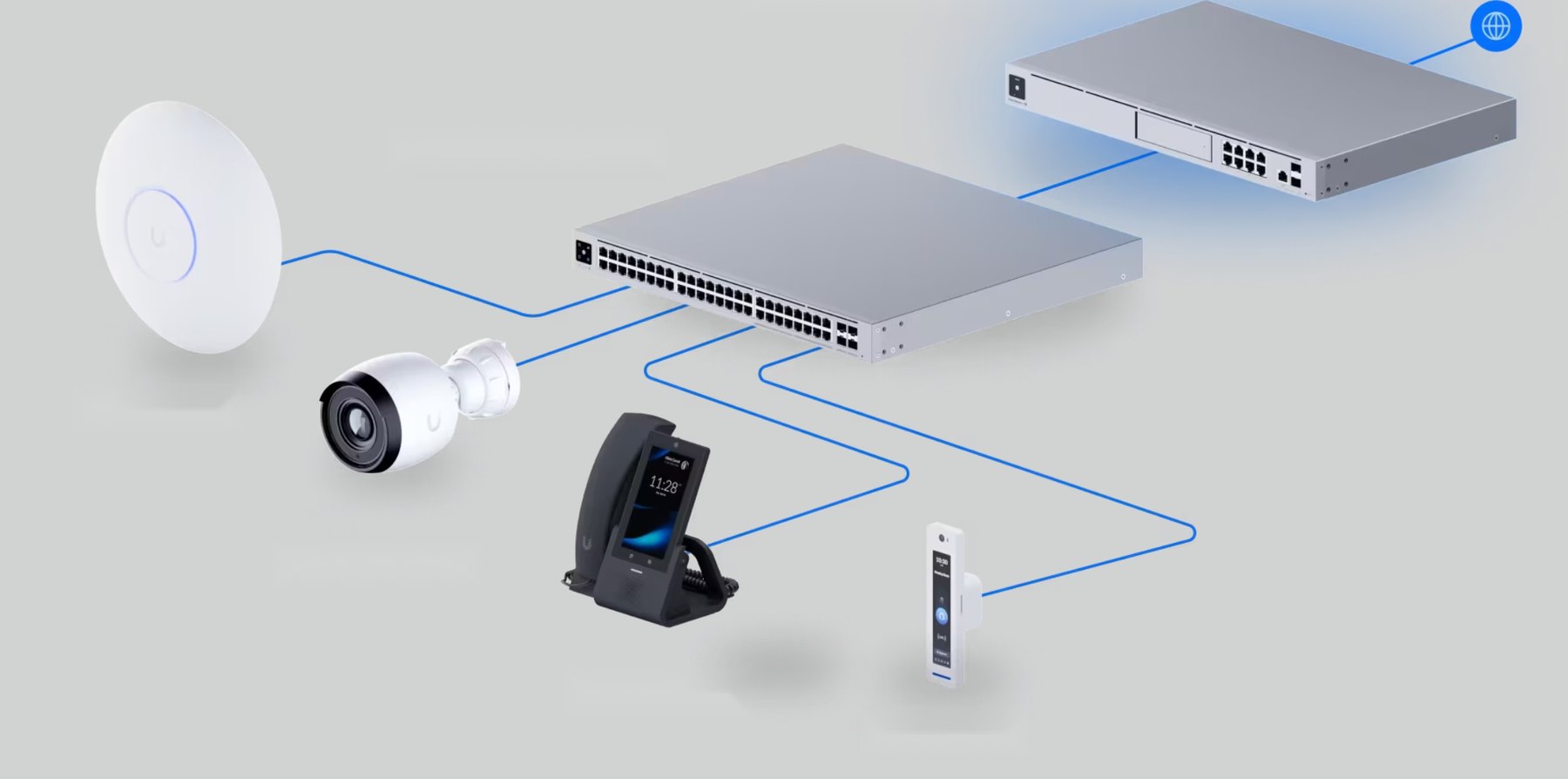
The fix: connect the TV or streaming device with a network cable if there is one nearby. If not, add a wired access point closer to the TV.
A crowded network
Every device in the home shares the same Wi-Fi. Large downloads, game updates, cloud backups and security cameras can all compete with your movie.
The fix: move devices that do not move — TVs, consoles, cameras — onto cables, and put smart-home devices on their own network.
Old equipment
An older router or streaming device can be the bottleneck even on a fast plan.
The fix: check how old your router is and whether your streaming device still receives updates. Upgrading either can make an immediate difference.
Too many devices fighting over routing
Homes with an internet provider's router plus a second router or mesh system often end up with two devices trying to manage the same network, which can cause slowdowns and dropouts.
The fix: let one device handle routing and set the other to bridge mode, or replace both with one well-designed system.
Your internet connection itself
Sometimes the problem is upstream. If speed tests next to the router are well below what you pay for, or the connection drops at certain times of day, contact your internet provider.
Quick checklist
- Restart the streaming device and the router.
- Test speed on the TV itself.
- Connect the TV with a cable if possible.
- Pause big downloads and backups while you watch.
- Update the TV, streaming device and router.
When to call a professional
If you have tried the basics and still see buffering, it is usually a design problem: not enough access points, no cable to the TV or equipment that cannot keep up. We design and install UniFi networks with wired access points and a cable to every TV, so streaming just works.
See our Networking & Wi-Fi page, read Mesh Wi-Fi vs. a professionally installed network, or schedule a consultation.